
Free Fire Basic Game Settings: Smooth Play | FFGamingZone

Why Basic Game Settings Matter More Than Most Players Think
I have been playing Free Fire for close to a decade now, and if there is one thing I keep seeing in lobby after lobby, it is players ignoring the basic settings menu completely. They jump straight into ranked, get outgunned, blame the servers, blame their phone, blame everything except the fact that their graphics, audio and display settings are still sitting on whatever the game gave them on day one.
Basic settings are not some boring checklist you tick once and forget. They are the foundation of how the game feels in your hand. Bad settings can make a perfectly good phone feel laggy, make gunfights confusing because you can’t hear footsteps properly, or make your screen so dark you walk straight into an enemy squad without seeing them first.
First Impressions of Default Settings
When you install Free Fire fresh, the app tries to guess what works best for your device. Sometimes it gets close. Most of the time it plays it safe, meaning graphics quality is set lower than your phone can actually handle, or brightness and HUD size are set to some generic middle ground that doesn’t suit your playstyle at all.
How Basic Settings Affect Gameplay
Every setting under the basic menu, from FPS to brightness to sound balance, directly changes your reaction time and awareness in a match. A half second delay caused by bad graphics settings, or missing a footstep sound because music volume is too loud, is often the actual reason behind a lost fight, not bad aim.
What Are Basic Game Settings?
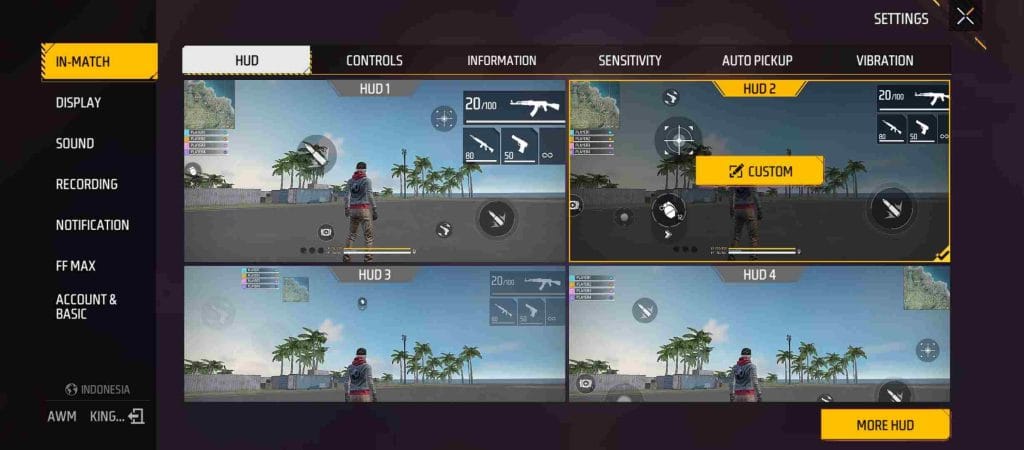
Understanding Basic Settings
Basic settings in Free Fire cover the core stuff you touch before even opening sensitivity or control layout options. This includes graphics quality, display brightness, audio levels, and HUD/interface options. Think of it as the base layer everything else sits on top of.
Why Every Player Should Customize Settings
Every device is different. Every player’s eyes and ears are different too. A setting that works great for your squadmate on a flagship phone might make your mid-range device stutter badly. Customizing basic settings is not optional if you actually want consistent performance.
Default Settings vs Optimized Settings
Default settings are built to avoid crashes across thousands of device models. Optimized settings are built around your specific phone and your specific playstyle. That difference alone is usually worth 10-20% smoother gameplay for most players who never bothered to touch the menu.
Complete Overview of Basic Game Settings
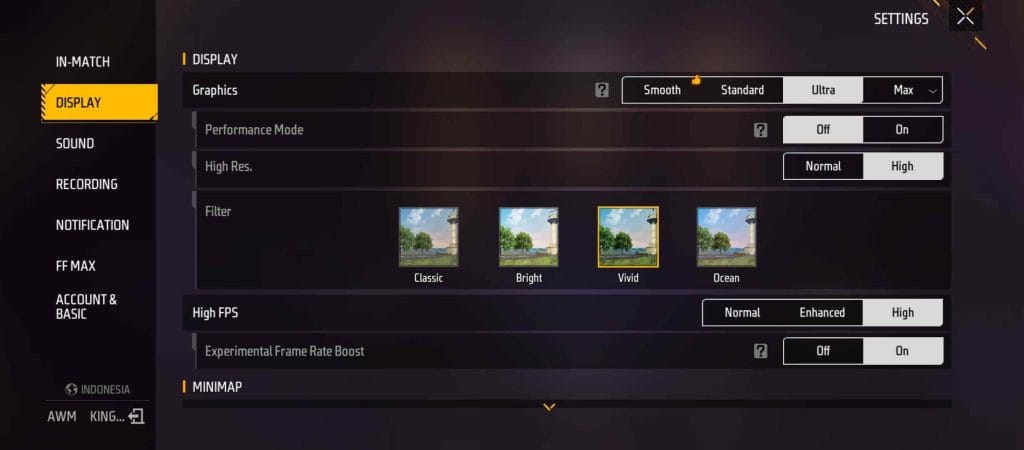
Graphics Settings
Graphics Quality
This controls how detailed textures, environments and character models look. Options usually range from Smooth to Ultra HD depending on device support. Higher quality looks nicer but eats more resources, which can cause frame drops on weaker phones.
High FPS Option
This toggle pushes your device to render more frames per second if it’s supported. For competitive players this is basically non-negotiable. Higher FPS means smoother tracking during spray fights and better visual response when someone rushes you.
Shadow Settings
Shadows add realism but they are also one of the heaviest things your device renders. On low and mid-range phones, turning shadows off or to low can free up a noticeable chunk of performance without hurting your gameplay awareness.
Display Settings
Brightness
In game brightness is separate from your phone’s system brightness. Too low and you lose enemies hiding in bushes or shadows. Too high and everything looks washed out, especially during daytime outdoor maps.
Screen Adjustment
This covers aspect ratio and screen fit, mainly relevant if you’re using an emulator or a device with a non-standard screen size. Getting this wrong can crop out parts of your HUD or minimap.
Visual Clarity
Some devices offer clarity or sharpness adjustments through the game or through device-level display settings. Sharper visuals help you spot enemy silhouettes from a distance, which matters a lot in open areas.
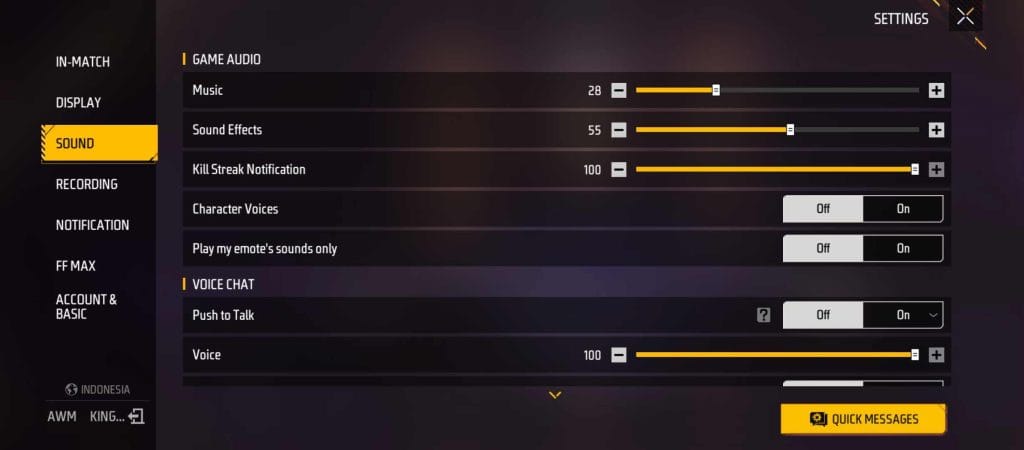
Audio Settings
Sound Effects
Gunfire, footsteps, reloads, grenade pins, vehicle engines. This is the category that actually wins or loses fights. Sound effects should always be kept high, full stop.
Music Volume
Background music adds atmosphere but contributes nothing to actual gameplay awareness. Most experienced players turn this down or mute it completely, especially in ranked.
Voice Chat Settings
Squad communication settings control your mic sensitivity, push to talk, and teammate voice volume. Getting this dialed in properly matters more in squad and clash squad modes where callouts decide fights.
Interface Settings
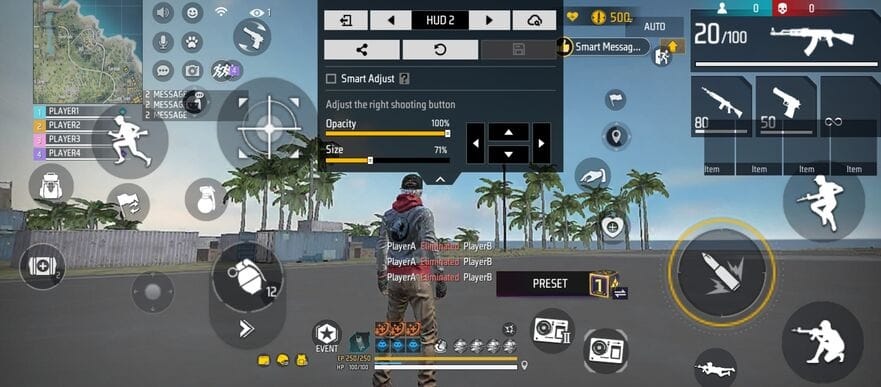
HUD Visibility
Controls how visible buttons, health bar, and minimap are on screen. Too cluttered and you lose screen real estate to actually see enemies. Too minimal and you might miss important info like low health or grenade cooldown.
Button Transparency
Adjusting transparency of on-screen buttons helps you see through them to what’s happening on the map behind your thumbs. Most pro-style setups keep this fairly transparent.
Notification Preferences
Kill feed, system messages, and other pop-ups can be toggled. Reducing unnecessary notifications keeps your screen cleaner during intense fights.
Choosing the Right Settings Based on Device
Low-End Devices
Keep graphics quality at Smooth or Low, shadows off, and prioritize FPS stability over visual quality. The goal here is to avoid stutter, not to make the game look pretty. A stable 30-40 FPS with clean shooting beats a fancy-looking game that lags every time a smoke grenade pops.
Mid-Range Devices
You have more room to work with. Medium to High graphics with High FPS enabled usually runs fine. Shadows can stay on Low. Test in a custom room first before taking these settings into ranked.
High-End Devices
Flagship phones can usually push Ultra HD graphics with Ultra FPS without issue, but even here, some competitive players deliberately lower graphics quality slightly to keep frame rates buttery smooth and consistent rather than chasing visual detail.
Situation-Based Basic Settings
Situation: Game Feels Laggy
Possible Causes
Graphics quality set too high for your device, background apps eating RAM, or unstable network combined with heavy visual load.
Completion Strategy
Lower graphics quality one step at a time, close background apps, and test again in a solo custom match to isolate whether it’s a settings issue or a network issue.
Resolution
Most of the time, dropping graphics to Medium or Low and turning shadows off resolves lag caused by device overload, not the actual internet connection.
Situation: Screen Looks Too Dark
Possible Causes
Low in-game brightness setting, device brightness set low to save battery, or map lighting combined with poor display calibration.
Competition Strategy
Increase in-game brightness first, then check your phone’s own display settings separately since both stack together.
Resolution
A properly balanced brightness setting makes bushes, buildings and shadowed corners much easier to scan for enemies, especially during dusk-lighting maps.
Situation: Sound Is Unclear
Possible Causes
Music volume overlapping with sound effects, low-quality earphones, or sound effects volume accidentally lowered.
Completion Strategy
Mute or lower music volume completely, push sound effects to max, and test with your actual in-match earphones or speaker setup.
Resolution
Once sound effects are isolated properly, footstep direction and gunfire location become far easier to read, which directly improves your positioning decisions.
Situation: Battery Drains Too Fast
Possible Causes
High graphics quality combined with High FPS running constantly, screen brightness maxed, and background data usage.
Completion Strategy
Lower graphics quality slightly, cap FPS at a reasonable level instead of the max option, and reduce brightness where possible without hurting visibility.
Resolution
A balanced setting between performance and battery consumption lets you play longer sessions without your phone dying mid-tournament or mid-ranked-push.
Situation: Phone Overheats While Playing
Possible Causes
Ultra graphics with Ultra FPS pushing your processor too hard, playing while charging, or playing with a phone case on.
Completion Strategy
Drop graphics and FPS settings down a notch, remove the case during long sessions, and avoid charging while actively gaming if your device runs hot.
Resolution
Reducing rendering load through basic settings is usually enough to keep temperatures in a safe range without needing any external cooling gadgets.
Cause & Solution Analysis
Why Default Settings Are Not Always Best
Default settings are built for compatibility across a massive range of devices, not performance on your specific one. That’s the core reason most players benefit from manual adjustment instead of leaving everything on auto.
Common Causes of Poor Game Performance
Outdated app version, too many background processes, incorrect graphics-to-device match, and neglected audio balance are the usual suspects behind a “bad” gaming experience that actually has nothing to do with skill.
Incorrect Graphics Configuration
Running Ultra HD on a device that can’t sustain it causes frame drops exactly when you need stability most, usually mid-fight.
Poor Audio Configuration
Music drowning out footsteps or gunfire is one of the most underrated reasons players get third-partied without warning.
Device Compatibility Issues
Some devices simply don’t support certain graphics or FPS combinations well, no matter how you tweak them. In these cases, prioritizing stability over visual fidelity is the smarter call.
Performance Optimization Through Basic Settings
Improving Stability
Locking FPS to a level your device can sustain consistently, rather than the highest available option, keeps gameplay smooth instead of spiking and dropping.
Reducing Frame Drops
Turning off shadows, lowering graphics quality, and closing background apps before matches are the three quickest wins here.
Improving Battery Efficiency
A slightly lower FPS cap combined with moderate brightness extends playtime significantly, especially useful during long grinding sessions or tournaments.
Keeping Gameplay Smooth
Regularly testing your settings after updates ensures nothing got reset or changed without you noticing, which happens more often than people expect.
Position-Based Setting Decisions
Indoor Gameplay Visibility
Indoor areas tend to have darker lighting, so slightly higher brightness helps spot enemies hiding in corners or behind furniture.
Outdoor Visibility
Open outdoor areas benefit more from visual clarity and sharper graphics quality to spot distant enemies early.
Bright Environment Settings
During daytime maps or bright zones, lowering brightness slightly can actually help reduce glare and eye strain during long sessions.
Dark Environment Settings
Night themed zones or dim indoor areas need brightness pushed up to avoid missing crouched enemies in shadows.
Basic Settings for Different Play Styles
Casual Players
Prioritize visual comfort and battery life over max performance. Medium graphics with balanced audio usually works fine for relaxed matches.
Ranked Players
Stability and FPS consistency matter more here. Sacrifice a bit of visual quality if it means smoother, lag-free gunfights.
Competitive Players
Every setting should be optimized purely for performance and clarity. High FPS, clear audio cues, and minimal HUD clutter are non-negotiable at this level.
New Players
Start with balanced default-adjacent settings and slowly tweak one category at a time. Don’t copy a pro’s full settings on day one, your device and hand size are different.
Beginner Setup Checklist
Before Your First Match
Check graphics quality matches your device tier, confirm sound effects are at max, and adjust brightness to your room lighting.
Weekly Settings Review
Revisit your settings occasionally, especially if you notice new lag, sound issues, or visual discomfort creeping in.
After Every Game Update
Updates sometimes reset or shift settings silently. Always double check graphics, audio and HUD after updating the app.
Common Basic Settings Mistakes
Using Default Settings Forever
The single biggest mistake I still see, even among players who’ve been grinding for years.
Copying Other Players Without Testing
What works on a friend’s flagship phone might tank performance on your device. Always test before committing.
Ignoring Device Performance
Pushing graphics higher than your device supports just because it “looks nicer” usually backfires during actual fights.
Forgetting Audio Optimization
Focusing only on graphics while leaving music volume high is a common oversight that hurts positional awareness.
Overloading Graphics Settings
Maxing every visual option at once without testing individually makes it hard to know which setting is actually causing lag.
Pro Player Basic Settings Habits
Regular Settings Review
Most consistent players check their settings periodically rather than assuming nothing has changed.
Testing After Updates
Pros test their full setup in custom rooms after every patch before jumping into ranked or scrims.
Maintaining Consistency
Keeping the same core settings across sessions builds muscle memory, which matters more than people realize.
Device-Based Optimization
Experienced players adjust settings specifically around their current device rather than chasing whatever setup looks good in a video.
Advanced Tips for Better Basic Settings
Creating a Comfortable Experience
Comfort over long sessions beats flashy visuals every time. Adjust brightness and HUD size to reduce eye and thumb strain.
Improving Long Gaming Sessions
Balanced FPS and graphics settings prevent overheating and battery drain during extended grinding sessions.
Balancing Performance and Visual Quality
Find the sweet spot where your device stays cool and stable while still looking clear enough to spot enemies at range.
Future-Proofing Your Settings
Leave a bit of performance headroom rather than maxing everything out, so future updates with heavier visuals don’t suddenly break your smoothness.
Conclusion
Key Takeaways
Basic game settings are not filler options, they directly shape how well you see, hear and react in every match. Graphics, display, audio and interface settings all work together, and neglecting even one category can quietly hurt your performance.
Recommended Setup
Match graphics quality to your device tier, keep sound effects maxed with music lowered, adjust brightness to your environment, and keep HUD clean but informative.
Final Expert Advice
After years of testing settings across different phones and different ranks, my honest take is simple: spend fifteen minutes properly tuning your basic settings once, and revisit them after every major update. That small habit saves you from blaming lag or bad luck for what is actually just an unoptimized setup.
Frequently Asked Questions (FAQ)
What are Basic Game Settings in Free Fire?
They are the core settings covering graphics, display, audio and interface options that shape your overall gameplay experience.
Should I use the default settings or customize them?
Customize them. Default settings are built for broad compatibility, not for your specific device or playstyle.
Which graphics setting is best for low-end devices?
Smooth or Low graphics quality with shadows turned off, prioritizing stable FPS over visual detail.
Does High FPS improve gameplay?
Yes, if your device supports it. Higher FPS gives smoother tracking and faster visual response during fights.
Can basic settings reduce lag?
Yes. Lowering graphics quality and disabling shadows are two of the fastest ways to reduce lag caused by device overload.
Which audio settings are most important?
Sound effects. Keep them maxed and lower music volume to hear footsteps and gunfire clearly.
Should beginners use different settings from experienced players?
Yes, since device, hand size and comfort levels differ. Start balanced and adjust gradually instead of copying pro setups directly.
Do basic settings affect battery life?
Yes. High graphics and Ultra FPS drain battery faster than balanced, moderate settings.
What are the most common Basic Game Settings mistakes?
Sticking with default settings, copying others without testing, ignoring device limits, and neglecting audio balance while focusing only on graphics.