
Free Fire Secret Settings: Advanced Pro Tips | FFGamingZone
I have been playing Free Fire for close to a decade now, and if there is one thing I keep noticing in almost every “settings guide” out there, it is this: everyone talks about sensitivity and nothing else. DPI here, general sensitivity there, headshot config, red dot config, blah blah. But sensitivity is only one piece of the puzzle. The players who actually push rank consistently or win Clash Squad matches are not just running good sensitivity, they are running good advanced settings too.
This guide is not another copy-paste sensitivity list. I am covering the secret and advanced settings that most players never touch, the ones buried in HUD customization, camera control, audio, and control layout. These are the small changes that quietly separate a decent player from a genuinely dangerous one. Let’s get into it.
I’ve tested different combinations of these settings across multiple seasons, on low end phones, mid range phones, and flagship devices, and the pattern is always the same. Players who only chase sensitivity numbers hit a wall pretty fast. Players who also tune HUD, camera behavior, and audio keep improving because they’re fixing the actual bottleneck, which is usually reaction speed, not raw aim.
What Are Free Fire Secret / Advanced Settings?
Advanced settings are basically everything outside the obvious sensitivity sliders. Think HUD layout, button placement, camera behavior, audio mixing, display tuning, and control customization. Most of this sits inside sub menus that people skip because they look boring or technical.
Difference Between Basic Settings and Advanced Settings
Basic settings are what every new player touches on day one: sensitivity, graphics quality, control mode. Advanced settings go deeper, things like fire button size, HUD transparency, gyroscope tuning, camera shake reduction, and audio balance. Basic settings decide how the game feels overall. Advanced settings decide how fast you react in a real fight.
Why Most Players Never Use These Hidden Settings
Honestly, most players just don’t know these menus exist, or they open them once, get confused, and close them. Some players are also scared of “breaking” their current setup, so they never experiment. I get it, but that fear is costing them real gameplay improvement.
Are Secret Settings Really Worth Changing?
Yes, and I say this from experience. I once switched from a stock HUD layout to a custom one with better button spacing and my headshot rate went up noticeably within a week, not because my aim suddenly got better, but because my thumb was reaching buttons faster. Small changes, real results.
Why Advanced Settings Matter More Than Sensitivity
Sensitivity gets all the attention, but it only controls how your camera moves. It does not fix a badly placed fire button or a cluttered HUD that makes you misclick during a fight.
Why Advanced Settings Matter More Than Sensitivity
Sensitivity gets all the attention, but it only controls how your camera moves. It does not fix a badly placed fire button or a cluttered HUD that makes you misclick during a fight.
How Advanced Settings Affect Gameplay
- Impact on Aim Accuracy: A properly sized and placed fire button reduces accidental misses.
- Impact on Movement Speed: Clean HUD layout means less finger travel, so you move and shoot faster.
- Impact on Reaction Time: Better camera and audio settings help you spot enemies quicker.
- Impact on Device Performance: Right graphics and FPS settings keep your gameplay smooth even in heavy fights, no lag spikes right when you need to peek.
None of these show up as a single number you can copy from someone else’s profile. That’s exactly why they get ignored, there’s no obvious stat to chase. But once you actually sit down and tune them, the improvement shows up fast, usually within a few matches.
Best Free Fire Secret / Advanced Settings
This is the core section, the actual settings I recommend adjusting.
- Smart HUD Optimization: Keep only the buttons you actually use visible. Remove or shrink unused icons so your screen isn't cluttered during fights.
- Aim Precision Configuration: Turn on precise aiming or reduce auto aim assist slightly if you want manual headshots to count more, this trains real aim over time.
- Fire Button Placement: Move it slightly toward the bottom right corner where your thumb naturally rests, not dead center.
- Camera Movement Optimization: Balance your camera sensitivity so it feels smooth, not jumpy, especially during rapid 360 turns.
- Quick Weapon Switch Settings: Enable quick switch so you are not fumbling between primary and secondary in a close fight.
- Fast Loot Settings: Turn on quick loot options so you spend less time in inventory and more time watching your surroundings.
- Auto Pickup Optimization: Customize what gets auto picked, ammo and meds yes, junk items no.
- Gloo Wall Quick Access: Place gloo wall button somewhere your thumb hits instantly, this alone saves lives in clutch moments.
- Utility Wheel Customization: Arrange grenades, smoke, and gloo in an order that matches how often you use them.
Secret HUD Tricks Used by Pro Players
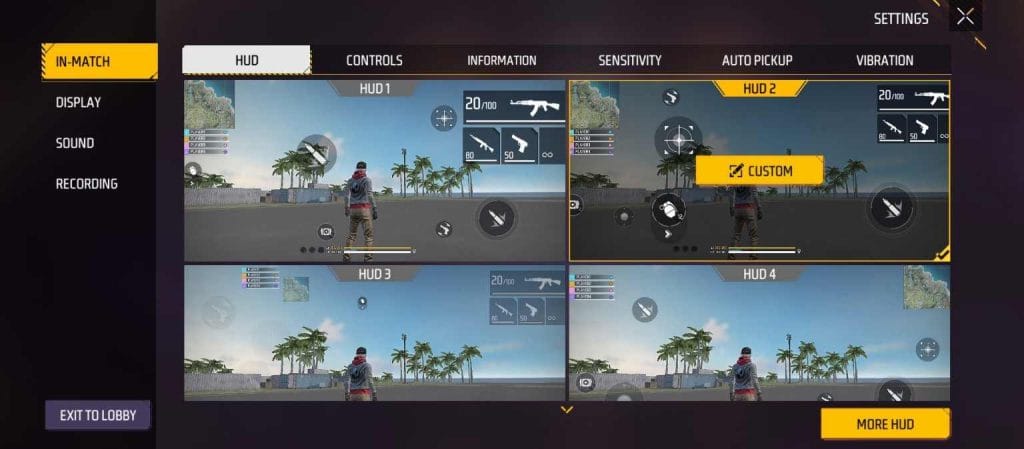
I have watched a lot of pro gameplay and studied their layouts, here’s what stands out.
Best HUD Size
Slightly smaller than default, gives more screen visibility without making buttons hard to hit.
Fire Button Position
Bottom right, angled so your thumb doesn’t need to stretch.
Jump & Crouch Placement
Close together but not overlapping, this combo gets used a lot during dropshots and edge peeks.
Scope Button Placement
Right above fire button, so scoping in and shooting becomes one smooth motion.
Peek Button Optimization
Positioned near the movement joystick for instant lean peeking without losing movement control.
Finger Reach Optimization
Basically, arrange everything so your thumb never has to jump across the screen mid fight.
Hidden Gameplay Settings That Improve Performance
- Faster Weapon Switching: Quick switch toggle plus a well placed switch button cuts your reaction delay in close range fights.
- Faster Healing: Auto use med kit settings help when you are low HP and under fire.
- Faster Gloo Wall Deployment: Dedicated gloo button with quick access placement, don't bury it in the utility wheel.
- Faster Utility Usage: Custom order for grenades and smokes based on your playstyle.
- Better Camera Control: Balanced sensitivity between free look and gyroscope if you use it.
- Reduced Finger Movement: Fewer, better placed buttons beats a HUD full of icons every time.
Secret Camera & Screen Optimization
Camera Sensitivity Balance
Don’t max out every sensitivity slider, that’s a rookie mistake. Balance general, red dot, 2x, 4x, and sniper scope separately based on actual usage.
Screen Shake Reduction
Lower screen shake in graphics settings, it keeps your aim steady during explosions and gunfights.
Better Field Awareness
Wider FOV if your device handles it well, more visibility means fewer surprise deaths.
Faster Enemy Tracking
Smooth camera movement combined with balanced sensitivity helps you track a running enemy instead of overshooting.
Smooth Camera Rotation
Avoid extreme sensitivity values, they cause jerky turns that actually hurt tracking accuracy.
Secret HUD Tricks Used by Pro Players
I have watched a lot of pro gameplay and studied their layouts, here’s what stands out.
Best HUD Size
Slightly smaller than default, gives more screen visibility without making buttons hard to hit.
Fire Button Position
Bottom right, angled so your thumb doesn’t need to stretch.
Jump & Crouch Placement
Close together but not overlapping, this combo gets used a lot during dropshots and edge peeks.
Scope Button Placement
Right above fire button, so scoping in and shooting becomes one smooth motion.
Peek Button Optimization
Positioned near the movement joystick for instant lean peeking without losing movement control.
Finger Reach Optimization
Basically, arrange everything so your thumb never has to jump across the screen mid fight.
Hidden Gameplay Settings That Improve Performance
- Faster Weapon Switching: Quick switch toggle plus a well placed switch button cuts your reaction delay in close range fights.
- Faster Healing: Auto use med kit settings help when you are low HP and under fire.
- Faster Gloo Wall Deployment: Dedicated gloo button with quick access placement, don't bury it in the utility wheel.
- Faster Utility Usage: Custom order for grenades and smokes based on your playstyle.
- Better Camera Control: Balanced sensitivity between free look and gyroscope if you use it.
- Reduced Finger Movement: Fewer, better placed buttons beats a HUD full of icons every time.
Secret Camera & Screen Optimization
Camera Sensitivity Balance
Don’t max out every sensitivity slider, that’s a rookie mistake. Balance general, red dot, 2x, 4x, and sniper scope separately based on actual usage.
Screen Shake Reduction
Lower screen shake in graphics settings, it keeps your aim steady during explosions and gunfights.
Better Field Awareness
Wider FOV if your device handles it well, more visibility means fewer surprise deaths.
Faster Enemy Tracking
Smooth camera movement combined with balanced sensitivity helps you track a running enemy instead of overshooting.
Smooth Camera Rotation
Avoid extreme sensitivity values, they cause jerky turns that actually hurt tracking accuracy.
Secret Audio Settings Most Players Ignore
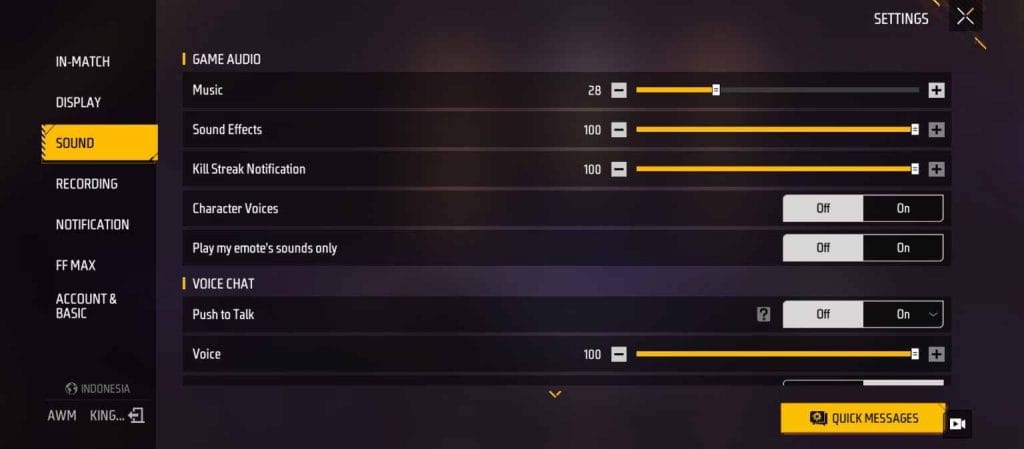
Audio is criminally underrated in Free Fire. I have won fights purely because I heard footsteps before seeing anyone.
Footstep Sound Optimization
Turn up footstep volume relative to background music, this is a genuine game changer.
Gunshot Direction Awareness
Use stereo sound and decent headphones, directional gunshot audio tells you exactly where a fight is happening.
Voice Chat Optimization
Lower voice chat volume during ranked pushes if it distracts you, keep game sound priority.
Sound Balance
Reduce background music, boost gunfire and footstep audio, simple as that.
Best Headphone Configuration
Any headset with decent stereo separation works better than phone speakers, directional audio is that important.
Secret Display Settings for Better Visibility
- Graphics Optimization: Match graphics quality to your device, higher isn't always better if it causes stutter.
- Brightness Adjustment: Slightly brighter than default helps spot enemies in bushes and shadows.
- Shadow Management: Lower shadow quality if it's hiding enemy models on low end devices.
- FPS Priority: Prioritize frame rate over graphics quality, smooth gameplay beats pretty visuals every time.
- Screen Clarity Optimization: Reduce unnecessary visual effects that clutter your screen during fights.
Advanced Control Customization
Custom Button Layout
Build your layout around your actual thumb reach, not what pros use, everyone’s hand size and grip is different.
Finger Movement Reduction
Group frequently used buttons close together, this alone speeds up your reaction time.
Comfortable Layout Design
If a layout feels uncomfortable after 10 minutes, change it, comfort directly affects consistency.
Muscle Memory Layout
Stick with a layout for at least a week before judging it, your fingers need time to adapt.
Secret Settings for Different Devices
Low-End Devices
Performance Priority Setup:
Lowest graphics, lowest shadows, FPS set to high or maximum available, disable unnecessary effects, this keeps the game running smooth without random freezes mid fight.
Mid-Range Devices
Balanced Gameplay Setup:
Medium graphics, higher FPS priority, moderate shadow and effects, this is the sweet spot most players sit in.
High-End Devices
Competitive Pro Setup:
Max FPS, clean HUD, high clarity settings, since your device can handle it without lag, focus purely on visibility and precision.
Situation-Based Secret Settings
Close Range Fight Settings
Faster Reactions:
Lower general sensitivity slightly for control, keep fire and gloo buttons within instant thumb reach.
Long Range Fight Settings
Better Stability:
Lower scope sensitivity for steadier long shots, reduce screen shake to keep your crosshair locked.
Clash Squad Settings
Fast Decision Making:
Quick weapon switch and quick loot are essential here, rounds are short and every second counts.
Battle Royale Settings
Better Survival:
Wider awareness settings, good audio setup, and a gloo wall button you can hit without thinking.
Rank Push Settings
Consistency Over Speed:
Stick to a proven, stable setup rather than experimenting mid season, consistency wins more ranked matches than flashy settings.
Common Problems Players Face
Let’s be honest about what actually goes wrong for most players:
Causes Behind Poor Gameplay Despite Good Sensitivity
If your sensitivity is fine but you’re still struggling, the real problem is usually here:
Complete Solutions (Resolution)
- Optimize HUD: Remove clutter, resize and reposition buttons based on real usage.
- Optimize Controls: Place fire, gloo, and switch buttons within instant thumb reach.
- Optimize Display: Balance brightness, shadows, and FPS priority for your specific device.
- Optimize Audio: Boost footsteps and gunfire, lower music and unnecessary voice chat.
- Practice New Settings Properly: Give any new setup at least a week in casual matches before taking it into ranked.
Position Based Advanced Settings
Aggressive Players
Fast Movement Configuration:
Prioritize quick switch, close range fire button access, and slightly lower general sensitivity for tight control during rushes.
Defensive Players
Stable Control Setup
Prioritize gloo wall speed and camera stability, you need to hold angles calmly, not react wildly.
Support Players
Utility Priority Settings:
Arrange grenades, smokes, and heal items for instant access, your job is enabling the team fast.
Sniper Players
Precision Focus Settings:
Lower scope sensitivity, reduce screen shake, and prioritize a clean, distraction free HUD.
Mistakes That Destroy Advanced Settings
- Copying pro players blindly without matching device or hand size
- Changing settings daily instead of sticking with one setup long enough to adapt
- Ignoring device capability and forcing high graphics on a weak phone
- Using an overcrowded HUD with too many visible buttons
- Poor practice routine, jumping straight into ranked with untested settings
Pro Tips for Mastering Advanced Settings
- Build Muscle Memory: Play at least a few days with any new layout before judging results.
- Test One Change at a Time: Changing five settings at once makes it impossible to know what actually helped.
- Record Gameplay: Watching your own clips shows exactly where your thumb hesitates or misclicks.
- Review Mistakes: Don't just play more, actually analyze why you died or missed a shot.
- Keep Settings Consistent: Once something works, leave it alone, constant tweaking resets your muscle memory.
Final Verdict
Sensitivity guides are everywhere, but advanced settings are what actually separate players in real fights. HUD layout, camera control, audio balance, and button placement, these are the quiet details that pro players tune carefully and most casual players never touch. You don’t need to change everything overnight. Pick two or three settings from this guide, apply them, play a week, and judge the difference yourself. That’s exactly how I built my own setup over the years, one tested change at a time.
There’s no perfect universal setup, and anyone claiming otherwise is probably just selling a settings pack. What works is understanding why a setting helps, testing it on your own device with your own hand size, and keeping what actually improves your matches. Do that consistently and your gameplay will look noticeably different in a month, not because of some magic config, but because you removed the small frictions that were slowing you down every single fight.
Frequently Asked Questions (FAQ)
What are Free Fire Secret Settings?
They are the lesser known configuration options outside basic sensitivity, covering HUD, camera, audio, and control layout, that directly affect reaction speed and accuracy.
Which Advanced Setting Improves Headshots the Most?
A well placed fire button combined with balanced scope sensitivity makes the biggest difference for consistent headshots.
Can Secret Settings Improve Gameplay Without Better Aim?
Yes, faster button access, clearer visibility, and better audio can improve your overall performance even if your raw aim stays the same.
Which HUD Layout Is Best for Competitive Players?
A minimal layout with only essential buttons, sized and placed for instant thumb reach without stretching.
Which Secret Settings Do Professional Free Fire Players Commonly Use?
Most pros run a minimal clean HUD, optimized fire and gloo button placement, balanced scope sensitivity, and boosted footstep audio.
What Is the Biggest Mistake While Using Advanced Settings?
Copying a pro player’s exact setup without considering your own device, hand size, and playstyle.